The Administration Console is a tool that is used to create and manage Web service instances, including Geospatial Portal.
This wizard configures important information required by the Administration Console and prepares the Administration Console for use.
The wizard is run automatically with Geospatial Portal installation. To run the wizard you can also open the Hexagon Geospatial Setup Manager, click the Configure button in the Action column or, from the Start menu, select All Programs > Hexagon Geospatial Portal > Utilities > Configuration Wizard. For more information about the Hexagon Geospatial Setup Manager, see Hexagon Geospatial Setup Manager - Overview.
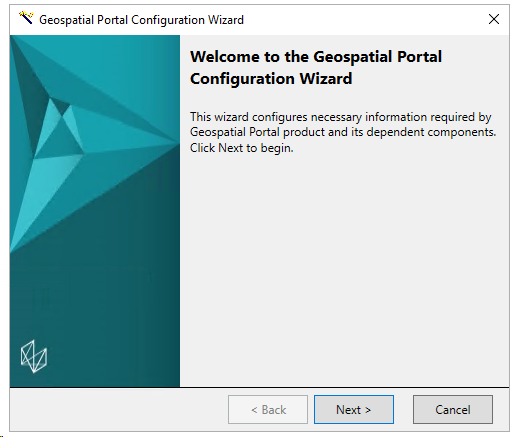
On the Welcomescreen, click Next to begin the configuration.
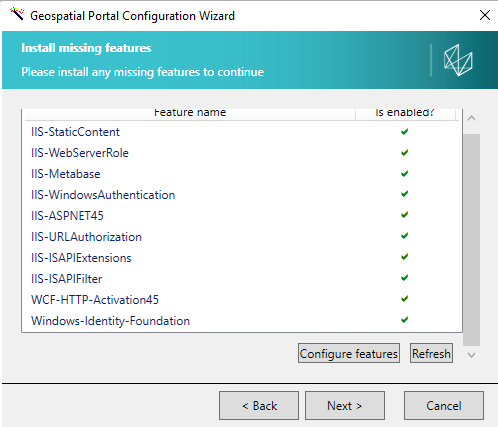
The wizard searches for installed system features and components. When completed, a screen with a list of all installed or missing features will be shown. In case all required features are enabled, click Next. In case there are some missing system features, configure them and then click Next.
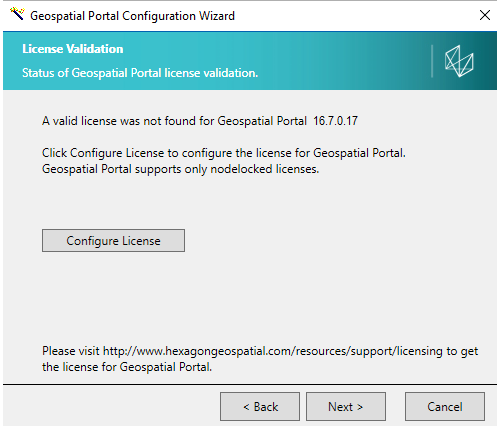
Wizard checks if the license for Geospatial Portal is available. If a valid license was not found click Configure License to activate your license. See Licensing Geospatial Portal for more information.
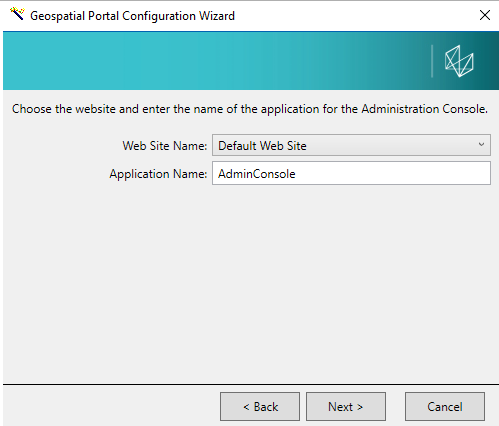
Choose the Web site, and then enter the name of the application for the Administration Console.
The options to leave or to re-create the Administration Console GUI Instance will appear only in case the Administration Console is already installed. If you chose Recreate, the previous version will be removed before installing the new version.
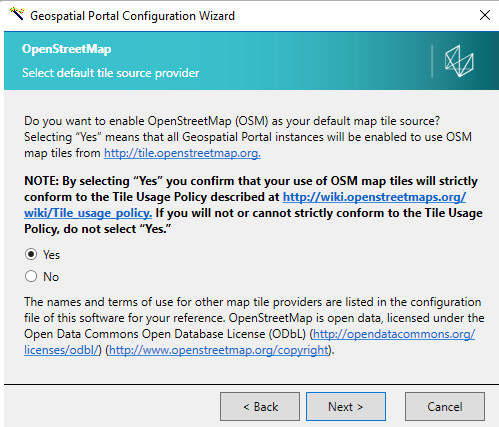
Decide whether you want to enable OpenStreetMap as your default map tile source. If you select Yes, all Geospatial Portal instances will be enabled to use OSM map tiles.
By selecting "Yes" you confirm that your use of OSM map tiles will strictly conform to the Tile Usage Policy described at http://wiki.openstreetmaps.org/wiki/Tile_usage_policy. If you will not or cannot strictly conform to the Tile Usage Policy, do not select Yes.
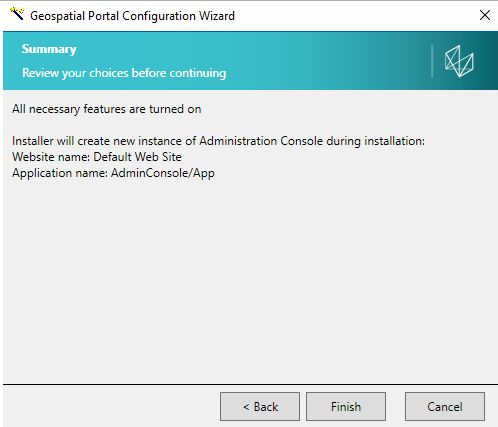
Review your choices before continuing, and then click Finish. The wizard will configure your application.
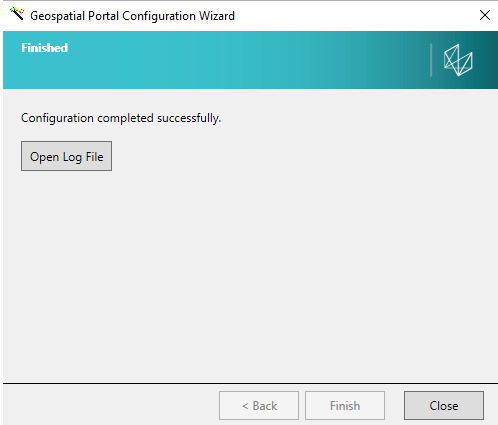
When finished, you can click Open Log File, or exit the wizard by clicking Close.
 The options to leave or to re-create the Administration Console GUI Instance will appear only in case the Administration Console is already installed. If you chose Recreate, the previous version will be removed before installing the new version.
 By selecting "Yes" you confirm that your use of OSM map tiles will strictly conform to the Tile Usage Policy described at http://wiki.openstreetmaps.org/wiki/Tile_usage_policy. If you will not or cannot strictly conform to the Tile Usage Policy, do not select Yes.