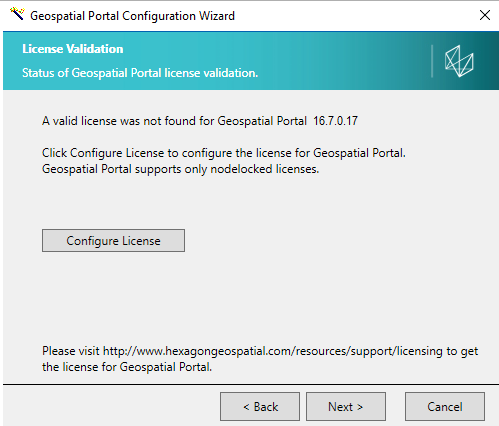
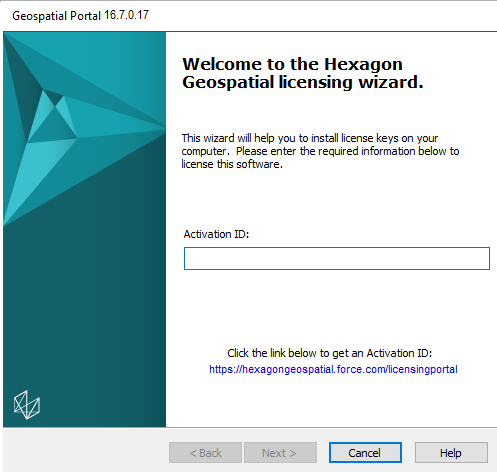
Every time you start Geospatial Portal, it searches for a license. If it does not find a license, the application cannot be run. It is necessary to activate a license for Geospatial Portal in order to run the application. The license activation is carried out in the Geospatial Portal Configuration Wizard step.
License can be also activated with Hexagon Geospatial License Administration. The Hexagon Geospatial License Administration utility lets you manage all of the software licenses that are available for your machine to review in order to run the Geospatial Portal application that is installed on your machine.
Activating License(s)
 Visit our Licensing Portal Web site to generate or to view your licenses. There are help topics on the Licensing Community page to assist you if you have difficulty in generating or managing your license. For more information and help topics on the Hexagon Geospatial License Administration utility, refer to the Geospatial Licensing Help.